Get a professional email at your own domain by verifying that domain with a hosting provider, pointing your MX records to that provider, then creating mailboxes for your team, or by having a managed team complete this in a single onboarding session. You need domain ownership, DNS login access, and admin rights before you start. From there, it is a choice between a do-it-yourself hosted plan or a managed setup that handles the technical parts for you.
TL;DR:
- Connecting your domain to a hosting provider, verifying ownership, and updating DNS records can take up to 48 hours for full propagation.
- Using a managed onboarding service reduces setup time and minimizes errors in configuration, especially for complex migrations or large teams.
- Properly configuring SPF, DKIM, and DMARC records is essential to keep your email out of spam and prevent domain spoofing, with a typical rollout taking about 75 minutes plus two weeks of monitoring.
- Small businesses with a few staff can often manage setup themselves if comfortable with DNS, but larger or security-sensitive companies should consider professional help.
- Regularly reviewing email authentication, monitoring delivery reports, and enforcing security practices like two-factor authentication greatly enhance email security and reliability.
Table of Contents
- Quick checklist: technical prerequisites and accounts to prepare
- Step-by-step setup: verify your domain, add MX records, and create mailboxes
- Email authentication: SPF, DKIM, and DMARC rollout without breaking your mail
- Mailbox management and migration essentials
- Costs and plan choices: what to expect and how to budget
- Timeline and troubleshooting checklist
- Overview of popular business email hosting providers with pros and cons
- Guidance on selecting the right business email solution based on company size and needs
- Security best practices beyond authentication
- Integration with calendars, contacts, and collaboration tools
- When a managed setup makes sense: a practical view
- How Red Rock Webscapes can help with your email setup
- Sources
- FAQ
Quick checklist: technical prerequisites and accounts to prepare
Before you touch a single DNS record, gather what you actually need. Skipping this step is the most common reason a business email setup drags into a second or third day.
Confirm you own the domain outright and that you have the login for wherever it is registered, whether that is GoDaddy, Namecheap, Google Domains, or another registrar. If someone else set up the domain years ago, track down that account first: password resets can add hours to the process.
You also need either admin access to the email platform you plan to use, or a contact at a managed provider who can walk you through onboarding. Before switching anything over, write down every service that currently sends email using your domain: your CRM, contact forms on your website, payment processors, invoicing tools, and marketing platforms. Each one needs to be accounted for later when you set up authentication, or their messages will start landing in spam.
- Domain ownership confirmed and registrar login on hand
- DNS access verified (you can add or edit TXT, MX, and CNAME records)
- Admin account created on your chosen email platform, or a managed onboarding contact scheduled
- Full list of services that send mail from your domain (CRM, forms, receipts, marketing tools)
- A decision on where recovery emails and backup contacts will point
Skip any of these and you will likely hit a wall midway through setup, usually when a record will not save or a service suddenly stops delivering mail.
Step-by-step setup: verify your domain, add MX records, and create mailboxes
This is the part most owners dread, but it breaks into a short, ordered list. Follow it in sequence and you will have working mailboxes within a day, DNS propagation aside.
- Sign up for a hosting plan or managed onboarding. If you are going the DIY route, pick a provider and start a business account, which usually asks for your domain name up front. If you are using a managed team instead, this step is a short call: you hand over domain access and they take it from there.
- Verify domain ownership. The platform will give you a TXT or CNAME record to add at your registrar. A TXT record typically looks like
google-site-verification=abc123xyzor similar, added at the root of your domain. A CNAME might look likemail.yourdomain.compointing to a value the platform supplies. Add exactly what is shown, save, and wait for the platform to detect it, which can take a few minutes to a few hours. - Add your MX records. MX records tell the internet where to deliver mail for your domain. Log into your registrar’s DNS panel, remove any old MX records pointing to a previous provider, and add the new ones exactly as your platform specifies, including priority numbers. Save the changes and give it time to take effect before testing.
- Confirm the MX records resolved. Use a free tool like MXToolbox or run a terminal command such as
dig MX yourdomain.comto check that the records show up correctly. If they do not appear within a few hours, double-check for typos or leftover records from your old provider that might be conflicting. - Create mailboxes and aliases. Set up individual accounts for real people (owner@yourdomain.com, jane@yourdomain.com) and aliases for shared functions (sales@, support@, billing@) that forward to one or more real mailboxes. A simple naming convention, first name or first-initial-last-name, keeps things predictable as you add staff.
- Configure email clients and run a test. Check webmail access first since it requires no extra configuration. For desktop or mobile apps, you will need the platform’s SMTP and IMAP server addresses, ports, and encryption settings, usually listed on a settings or help page once you are logged in. Send a test message from the new address to an outside account, and send one back, to confirm both directions work.
Pro Tip: Set up the owner’s mailbox first and test it thoroughly before creating accounts for the rest of the team, so any DNS issues surface before anyone else depends on the address.
A few notes on naming conventions: keep it consistent across the company from day one. Mixing firstname@ and firstinitiallastname@ formats across different employees creates confusion for customers trying to guess an address, and it complicates any future migration. A typical small business setup might include owner@yourdomain.com for the founder, sales@yourdomain.com as a shared alias forwarding to two people, and support@yourdomain.com routed to whoever handles customer questions that week.
Aliases deserve a specific mention because they solve a problem a lot of new business owners do not anticipate: you do not need a separate paid mailbox for every function. A sales@ alias can forward to an existing mailbox, meaning a five-person company might only need two or three actual paid accounts plus several free aliases layered on top, depending on the platform’s rules.

Once mail is flowing, resist the urge to call the job finished. The next section covers the authentication layer that keeps your messages out of spam folders and stops attackers from spoofing your domain, and it is not optional in any practical sense.
Email authentication: SPF, DKIM, and DMARC rollout without breaking your mail
Authentication is what separates a domain that reliably reaches inboxes from one that gets flagged, filtered, or spoofed. SPF tells receiving servers which systems are allowed to send mail on your behalf. DKIM attaches a digital signature that proves a message was not altered in transit. DMARC tells receiving servers what to do when a message fails those checks, and it is the layer that actually blocks a lot of business email compromise attempts, where someone spoofs your domain to trick a customer or employee into wiring money or handing over credentials.
The rollout goes in a specific order, and skipping steps or rushing them is where most small businesses run into trouble.
- Audit every sender first. List every tool that sends mail as your domain, including your CRM, invoicing software, and marketing platform, before you write a single SPF entry.
- Publish one SPF TXT record. Combine every sender into a single record using
include:statements, since only one SPF TXT record per domain is valid and multiple records cause a PermError that breaks authentication entirely. - Enable DKIM signing on your platform once SPF is live and confirmed working.
- Start DMARC in monitoring mode (
p=none) so you can watch reports without blocking any mail. - Increase enforcement gradually using the
pct=tag to move from monitoring to quarantine and eventually reject, only after reports show clean results.
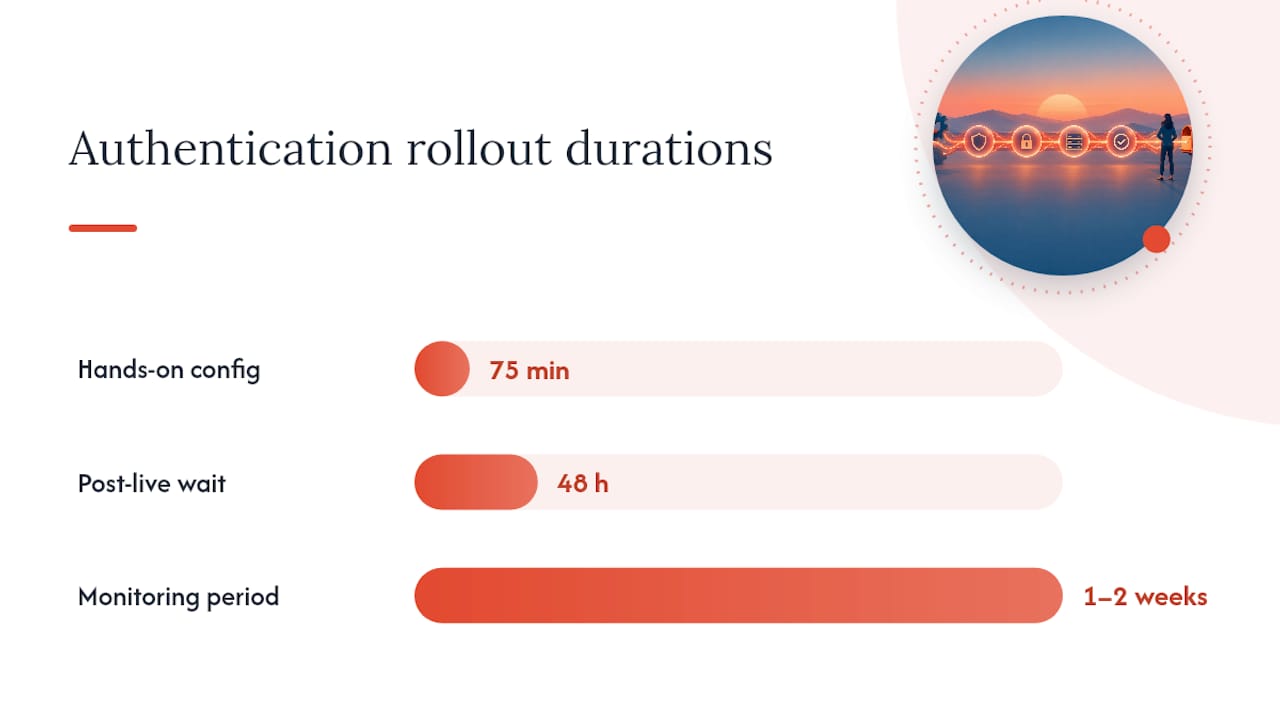
A full DMARC, SPF, and DKIM rollout typically takes about 75 minutes of hands-on configuration work, not counting DNS propagation or the time spent reading aggregate reports afterward. Plan for at least one to two weeks of monitoring before tightening your DMARC policy, since that is how long it usually takes to catch every legitimate sender you might have missed in your initial audit.
The most common mistake is publishing DKIM and flipping DMARC straight to enforcement the same day. Give it at least 48 hours after SPF and DKIM are both signing live mail before you touch the DMARC policy tag, and check your aggregate reports first. Those reports, sent as XML files to an address you specify in your DMARC record, show which servers are sending mail as your domain and whether they passed or failed. If you see a legitimate sender failing, fix its SPF or DKIM configuration before you raise enforcement, not after.
Mailbox management and migration essentials
Good mailbox hygiene matters as much as the initial setup, especially once you add staff or decide to switch platforms later.
For provisioning, stick to one naming convention across the company and decide early which roles get individual mailboxes versus shared aliases. A support inbox that three people monitor works better as a shared mailbox with delegated access than as three separate paid accounts.
If you are moving between platforms, such as from one hosted provider to another, migration prerequisites matter more than most owners expect. Documented steps include creating a routing subdomain, updating MX records at that subdomain rather than the main domain, and provisioning mail users on the target platform before the actual migration begins. Skipping domain verification on either the source or target side is a frequent cause of failed migrations.
- Set up shared mailboxes for departments (support, billing) and reserve individual accounts for named staff.
- Create a routing subdomain and provision target mail users before starting any platform-to-platform migration.
- Confirm both source and target domains are verified before moving a single mailbox.
- Turn on automatic backups where available, and confirm you know the retention window before you need to restore something.
Access control is worth a mention on its own. Where possible, use delegation (granting a colleague access to your mailbox without sharing your password) instead of handing out shared logins, which make it harder to track who sent what and complicate offboarding when someone leaves the company.
Costs and plan choices: what to expect and how to budget
Business email hosting is usually billed per user, per month, and the price band tends to track the features included: basic plans cover mail, calendar, and a fixed storage allowance, while higher tiers add larger storage, advanced admin controls, and compliance tools. As a point of reference, Red Rock Webscapes lists its own business email plan at $29 per month.
Beyond the monthly fee, factor in one-time costs: domain registration if you do not already own one, and any professional setup or migration assistance if you choose not to do it yourself. Ongoing extras can include added storage beyond your plan’s default, advanced security add-ons, or compliance and archiving tools if your industry requires them.
- Per-user monthly pricing is the norm, with storage and admin features scaling by tier.
- Domain registration and any migration assistance are typically one-time costs, separate from the monthly plan.
- Extra storage, advanced security, and compliance tools are common add-ons on top of a base plan.
- A managed setup often carries a flat setup fee in exchange for handled configuration and support.
A simple rubric: if you have a small team, are comfortable poking around a DNS panel, and have a free afternoon, DIY is realistic. If you are short on time, managing multiple senders, or dealing with a domain that already has other services attached, a managed setup reduces the odds of an afternoon turning into a lost week.
Timeline and troubleshooting checklist
DNS changes are not instant. Propagation can take up to 24 to 48 hours to fully resolve across the internet, so build that buffer into your plan before you announce a new address to clients or vendors.
Once you have made your DNS changes, run through this sequence:
- Check MX and TXT records with a lookup tool like MXToolbox, or run
digornslookupfrom a terminal to confirm the values match what your platform specified. - Send a test email to an external address (a personal Gmail or Outlook account works fine) and confirm it arrives, then reply and confirm you receive it back.
- Run your domain through an SPF and DKIM checker to confirm both are passing, not just published.
- If mail lands in spam, check your SPF record first for a PermError, which usually means duplicate SPF entries need merging into one.
- If DKIM fails, check for a selector mismatch, meaning the platform is signing with a key that does not match what is published in DNS.
If a record will not save, propagation is stuck well past 48 hours, or you are seeing conflicting error messages between your registrar and platform, that is the point to contact your platform’s support team. If the issue involves a migration between platforms or a domain with several years of accumulated services attached, escalating to a managed provider is often faster than troubleshooting alone.
Overview of popular business email hosting providers with pros and cons
Most small businesses choose between a small number of well-known hosted platforms, and the right pick depends more on your existing tools than on any single feature.
Google-based platforms tend to appeal to teams already using Google Docs, Sheets, and Drive, since mail, calendar, and storage sit in one familiar interface, though some admin controls are less granular than enterprise-focused alternatives. Microsoft-based platforms integrate tightly with Word, Excel, and Teams, which suits businesses already standardized on desktop Office software, but the admin console has a steeper learning curve for a first-time setup. Smaller independent email hosts, often bundled with web hosting, tend to be the cheapest option and are fine for a single mailbox or two, though they usually lack the collaboration tools and mobile app polish of the larger platforms.
None of these are wrong choices on their own. The deciding factor is usually which productivity suite your team already uses daily, since switching that habit costs more time than the email setup itself. A business already living in spreadsheets and shared docs on one ecosystem rarely benefits from forcing email onto the other.
Guidance on selecting the right business email solution based on company size and needs
A solo founder or a two-person shop rarely needs more than a basic hosted plan with a shared inbox or two. The priority at that size is getting a professional address working quickly and cheaply, not advanced admin controls you will not touch for years.
A growing team of five to twenty people benefits from a plan with better storage, shared mailbox support, and at least basic admin controls for adding or removing users as staff change. This is also the point where authentication (SPF, DKIM, DMARC) starts mattering more, since more people sending mail from your domain means more room for a misconfigured sender to slip through.
Businesses handling sensitive customer data, payments, or regulated information should weigh compliance and archiving features into the decision from the start rather than bolting them on later. And any business planning a migration, whether from a personal email provider to a business one or between two hosted platforms, should budget extra time for the prerequisites covered earlier rather than assuming a same-day switch.
Security best practices beyond authentication
SPF, DKIM, and DMARC handle authenticity, but they do not cover everything that keeps a mailbox safe. Spam filtering, usually on by default on major platforms, still benefits from an occasional review of your quarantine folder to catch legitimate mail that got flagged and adjust filter sensitivity if needed.
Encryption is worth understanding at a basic level: most major platforms encrypt mail in transit by default between their own servers, and some offer additional encryption options for sensitive messages, though the exact implementation varies by provider and is worth checking against your specific compliance needs if you handle regulated data.
Two-factor authentication on every mailbox is one of the simplest, highest-value steps available and should be turned on for every user, not just admins. Regularly reviewing who has admin access, and removing it promptly when someone leaves the company or changes roles, closes a gap that is often overlooked until it becomes a problem. Combined with routine backups, discussed earlier, these habits form a baseline that costs little time and meaningfully reduces risk.
Integration with calendars, contacts, and collaboration tools
Business email rarely lives on its own. Most hosted platforms bundle a calendar app that syncs meeting invitations directly into mailboxes, a shared contacts directory so staff are not each keeping a separate address book, and some form of document or file storage tied to the same login.
For a small team, this bundling is often the real value beyond the inbox itself: a shared calendar means no more double-booked meeting rooms, and a shared contacts list means a new hire can see the same client directory as everyone else on day one. Collaboration tools like shared documents or chat, when included, reduce the need for a separate subscription elsewhere.
When comparing plans, check what is actually bundled rather than assuming feature parity. Some entry-level tiers strip out calendar sharing or limit contact directory size, features that matter more as your team grows past a handful of people.
When a managed setup makes sense: a practical view
Most of what breaks in a business email setup is avoidable and mundane: a duplicate SPF record, a migration started before mail users were provisioned on the new platform, or a DMARC policy pushed to enforcement before anyone checked the aggregate reports. None of these require deep expertise to prevent, just the discipline to follow the steps in order and wait for confirmation at each stage.
That is really the case for a managed setup: not that the DIY path is too hard, but that a small business owner’s time is usually worth more spent elsewhere. Structured onboarding programs, such as Website Launchpad, exist precisely to take the sequencing and waiting out of the owner’s hands.
The honest tradeoff is speed and reduced risk against a monthly management fee. For a business already stretched thin, that trade is often worth making.
— George
How Red Rock Webscapes can help with your email setup
Red Rock Webscapes handles business email setup as part of its broader web and hosting work, and the same team that verifies domains and configures DNS for a new website launch applies that process to email. A typical engagement covers domain verification, the MX and authentication record changes covered above, migration assistance if you are moving from an existing provider, and support after launch if something needs adjusting.
The Website Launchpad program bundles this kind of managed setup with ongoing site care, and a business email plan is offered as part of their services.
Before reaching out, it helps to have a few things ready:
- The name of your domain registrar and confirmation you have login access.
- The number of mailboxes you expect to need at launch.
- Whether you are migrating existing mail from another provider or starting fresh.
From there, a quick look at current packages will show which option fits, and a short conversation is usually enough to get a timeline.
Sources
For readers who want to go deeper on any of the technical steps above, a few references cover the specifics in more detail. Google’s SPF setup documentation covers the exact record format and the single-record rule. The DMARC, SPF, and DKIM walkthrough referenced earlier goes step by step through the full rollout. Microsoft’s migration prerequisites documentation is the clearest resource available for anyone planning a platform-to-platform move.
- Google Workspace migration prerequisites in Exchange Online | Microsoft Learn
- How to Set Up DMARC, SPF & DKIM: 13 Steps 2026
FAQ
How much does business email cost per month?
Pricing is typically billed per mailbox, per month, with the exact figure depending on the platform and feature tier. As one reference point, Red Rock Webscapes lists its business email plan at $29 per month.
How long does it take to set up business email on a custom domain?
The hands-on configuration, verifying your domain, adding MX records, and creating mailboxes, can be done in an afternoon. Full authentication rollout with SPF, DKIM, and DMARC takes about 75 minutes of active work plus 24 to 48 hours for DNS propagation to fully settle.
Do I need SPF, DKIM, and DMARC for a small business email?
Yes, all three are considered standard practice for protecting your domain from spoofing and keeping mail out of spam folders. Skipping them, or enabling DMARC enforcement too quickly, is one of the most common causes of deliverability problems for small businesses.
Can I migrate my existing email to a new provider without losing messages?
Yes, but it requires provisioning mailboxes on the new platform and verifying both the source and target domains before moving anything, according to Microsoft’s migration prerequisites. Skipping verification or provisioning steps is the most common reason migrations stall or fail partway through.
Should I set up business email myself or hire a managed provider?
If you are comfortable in a DNS panel and have a free afternoon, a DIY setup with a hosted provider works fine for a small team. If you are short on time, migrating from an existing system, or want the authentication rollout handled without risk of a misconfiguration, a managed setup such as the one offered through Website Launchpad removes that risk for a monthly fee.




1 comment