Yes, you can move a Wix site to WordPress, and the right method depends on your site’s size and complexity. Pick manual migration for a small brochure site, a migration tool for a medium content library, or hire a professional for ecommerce or custom features. Whichever route you choose, domain transfer and server-side 301 redirects are the steps that protect your search rankings.
TL;DR:
- Automated migration tools work best for blogs and medium-sized content, but manual rebuilding is necessary for custom layouts and ecommerce data.
- Transfer of domain DNS settings is faster and suitable for small sites, while registrar transfers are better if consolidating domain management and can take up to several days.
- Setting up full server-side 301 redirects before launch is crucial to preserve SEO rankings, and redirect mapping should be completed and verified prior to DNS cutover.
- Migration costs can vary from a few days of self-done work for small sites to several weeks and higher expenses for ecommerce and large content libraries.
- Post-launch, optimizing performance with caching, updating plugins, and securing automatic SSL renewal is essential to maintain site speed and security.
Table of Contents
- Manual, tool-assisted, or outsourced: which migration path fits your site?
- Pre-migration checklist: backups, inventory, hosting, and credentials
- Step-by-step content migration: posts, pages, media, and plugins
- Domain and DNS: transfer versus pointing DNS to your new host
- SEO and redirects: mapping URLs and setting up server-side 301s
- Testing and launch checklist before you go live
- Rebuilding design, themes, and functionality in WordPress
- Costs and timeline: what to budget for each migration type
- How we support Wix-to-WordPress migrations
- Handling Wix Stores, Wix Blogs, and Wix Bookings during migration
- Migrating SEO metadata beyond redirects: titles, descriptions, and alt text
- Managing user accounts and comments during migration
- Common migration pitfalls and how to troubleshoot them
- Hardening performance and security after launch
- A pragmatic rule of thumb for DIY versus hiring
- Ready to migrate without the guesswork of doing it alone
- FAQ
- Sources
Manual, tool-assisted, or outsourced: which migration path fits your site?
The right path depends less on how much you know about WordPress and more on how much content you have and how much revenue depends on the site staying visible in search.
Manual migration means recreating pages by hand, copying text and images, and rebuilding navigation and forms inside WordPress. It works well for a small site of five to fifteen pages, but it is slow and easy to get wrong if you are not comfortable with basic HTML or a block editor.
Semi-automated migration tools can pull blog posts through an RSS or WXR export and import, but they rarely handle Wix’s custom layouts, interactive elements, or ecommerce product data cleanly. You will still need to manually rebuild most page designs and check every imported post for formatting issues.
A professional migration is worth the cost when you run an online store, have dozens of pages, or cannot afford downtime. A specialist handles URL mapping, redirect rules, product and customer data, and SEO metadata as one coordinated job instead of a patchwork of manual fixes.
- Manual: best for small brochure sites, requires time but no budget.
- Tool-assisted: best for blogs and medium content libraries, saves time on posts but not design.
- Professional: best for ecommerce or custom functionality, costs more but reduces the risk of lost traffic.
Pre-migration checklist: backups, inventory, hosting, and credentials
Before touching a single page, take stock of everything you have and everywhere you will need access. Skipping this step is the most common reason migrations stall halfway through.
- Build a content inventory. List every page, blog post, media file, form, and ecommerce product so nothing gets missed during the rebuild.
- Back up your media library. Download all images, videos, and documents directly from your Wix dashboard, and export any available RSS feed for blog content.
- Choose hosting and SSL. Pick a WordPress-compatible host, install WordPress, and confirm SSL is active before you move any content over.
- List required plugins. Note what you need for forms, SEO, caching, and ecommerce so your new site matches the functionality you are leaving behind.
- Record every credential. Save your domain registrar login, DNS access, hosting account details, and any third-party integration keys in one secure place.
- Set a rollback plan. Keep your Wix site live and untouched until the new WordPress site is fully tested, so you can revert instantly if something breaks.
Pro Tip: Take screenshots of every Wix page before you start. They are the fastest reference when you are rebuilding layouts from memory later.
Step-by-step content migration: posts, pages, media, and plugins
Content migration is where most of the actual labor happens, and breaking it into content types keeps the job manageable.
- Export blog posts via RSS or WXR where available, then import that file using WordPress’s Tools Export feature, which creates a WXR file containing posts, pages, comments, categories, and tags for import into another WordPress install.
- Recreate static pages manually. Wix’s page structure does not map directly onto WordPress templates, so headings, metadata, and layout blocks usually need to be rebuilt by hand rather than imported.
- Transfer media in bulk, then update every image URL and alt text to match the new WordPress media library paths.
- Rebuild forms and embedded widgets using WordPress plugins or shortcodes, since Wix’s native form builder and app widgets do not transfer directly.
- Decide where to use a third-party migration tool. These tools can save time on blog content but typically leave page layouts, custom widgets, and ecommerce data behind, so budget time for manual cleanup afterward.
For blog content specifically, exporting the RSS or WXR feed preserves post dates, authorship, and comments when available, but pages almost always need a manual pass. Common gaps after an automated import include:
- Missing custom fonts or color schemes unique to Wix’s design system.
- Broken internal links that still point to old Wix-style URL slugs.
- Dropped metadata like meta descriptions and Open Graph tags.
If you are weighing a fully tool-driven approach, services built around content portability, like Facet Cloud’s switching tools, illustrate how far automated transfer can go before manual rebuilding takes over.
Domain and DNS: transfer versus pointing DNS to your new host
You have two options for your domain: transfer the registration to a new registrar, or keep it where it is and simply point the DNS records, typically the nameservers or A record, to your new WordPress host. Pointing DNS is faster and sufficient for most small sites; a full registrar transfer makes sense if you want to consolidate domain and hosting billing in one place.
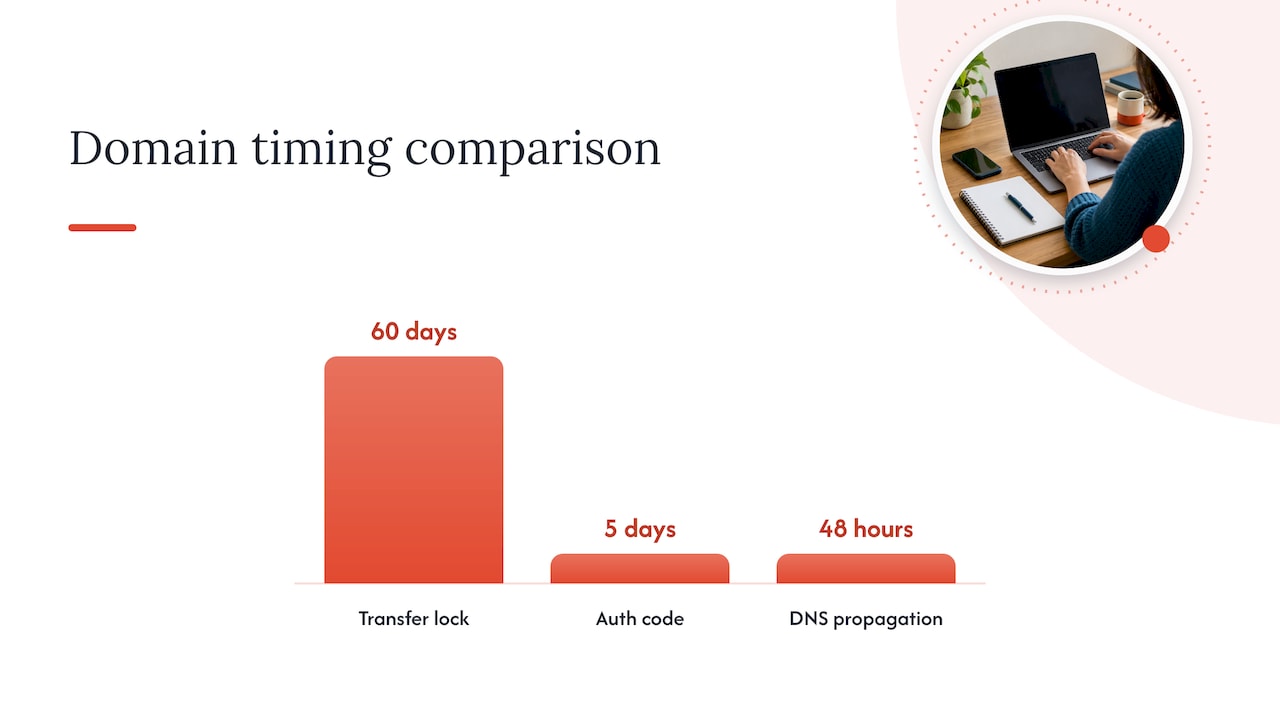
If you do transfer registrars, you will need an authorization code from your current registrar. Under ICANN’s rules, registrars must provide that code within five calendar days of a request, and transfers are blocked during the first 60 days after a domain’s registration or a previous transfer.
- Confirm your domain is outside the 60-day lock window before starting a transfer.
- Request the Auth-Code early since registrars have up to five days to deliver it.
- If only updating DNS, changes can be made the same day you are ready to launch.
DNS changes typically propagate within 48 hours, though timing varies by provider, so schedule your cutover with a buffer rather than assuming an instant switch.
SEO and redirects: mapping URLs and setting up server-side 301s
This is the step that determines whether your search rankings survive the move. Google Search Central’s site-move guidance recommends building a complete old-to-new URL map before you touch DNS, prioritizing your highest-traffic pages first.
Server-side redirects matter because Wix does not give you server-level redirect control. According to analysis from Search Engine Journal, relying on Wix’s client-side redirect settings often fails to pass SEO value reliably, so the safer approach is setting up full 301 redirect rules on your new WordPress host and completing the DNS cutover only once those rules are live and verified.
- Build your URL map before migration day, not after.
- Set permanent 301 or 308 redirects on the new host, never client-side redirects.
- Submit your new XML sitemap in Search Console immediately after launch.
- Monitor the Coverage report for crawl errors in the days following cutover.
Pro Tip: Keep your 301 redirects in place for at least a year after migration, since Google can continue crediting the old URLs to the new ones during that window.
Google also tends to crawl a newly moved site more heavily right after launch, so confirm your hosting plan can handle a traffic and crawl spike without slowing down.
Testing and launch checklist before you go live
Before you flip the switch publicly, run through a verification pass that covers both function and SEO signals.
- Crawl every redirect to confirm each old URL lands on a live, correct page rather than a dead end or redirect chain.
- Test every form and signup flow, and if you run a store, walk through a full checkout from cart to confirmation email.
- Check analytics and tracking pixels are firing correctly, confirm HTTPS is active sitewide, and verify canonical tags point to the right URLs.
- Watch traffic and crawl errors closely for the first 72 hours, then check weekly for a month to catch any indexing issues early.
Rebuilding design, themes, and functionality in WordPress
You do not need to replicate your Wix design pixel for pixel. Many small business owners find a refreshed, maintainable layout serves them better long term than an exact copy of an old design.
- Choose between a block-based Full Site Editing theme or a classic theme depending on how much layout flexibility you need.
- Cover plugin categories for forms, SEO, caching, and ecommerce rather than trying to match every Wix app one-to-one.
- Decide early whether you want an exact recreation or a cleaner rebuild, since that choice affects both cost and timeline.
- Test the finished site on mobile devices and run a basic accessibility check for contrast, alt text, and keyboard navigation.
WordPress.org’s installation and theme documentation is a solid starting reference for picking a theme structure that matches your technical comfort level.
Costs and timeline: what to budget for each migration type
A small brochure site with under fifteen pages can often be migrated manually in a few days to two weeks, mostly at the cost of your own time. A blog-heavy site with dozens of posts stretches that timeline to several weeks once you account for formatting cleanup after an automated import. Ecommerce migrations, which involve products, customer records, and order history, typically take the longest and carry the most risk of data loss if done without experience.
- Premium themes or plugins can add to your budget beyond free WordPress tools.
- Developer fixes for broken layouts or custom code are a common unplanned cost.
- Migrating order and customer data for a store often requires paid tools or professional help.
- A registrar transfer, bound by the 60-day and five-day rules above, can extend your overall schedule if not planned around in advance.
How we support Wix-to-WordPress migrations
When a migration involves ecommerce, custom features, or simply more time than you have, we handle the move as part of our offerings. Our approach pairs traditional design work with AI-assisted development, which speeds up page rebuilding without cutting corners on redirect and metadata accuracy.
- URL mapping and server-side 301 redirect setup handled as part of the build.
- Post-launch support through our managed care plans, so issues get fixed quickly after launch.
- Custom pricing scoped to your site’s size, from a brochure rebuild to a full store migration.
Our packages and Website Launchpad pages outline current options for small businesses planning a move.
Handling Wix Stores, Wix Blogs, and Wix Bookings during migration
Each Wix content type needs its own migration plan because none of them map cleanly onto WordPress’s default structure.
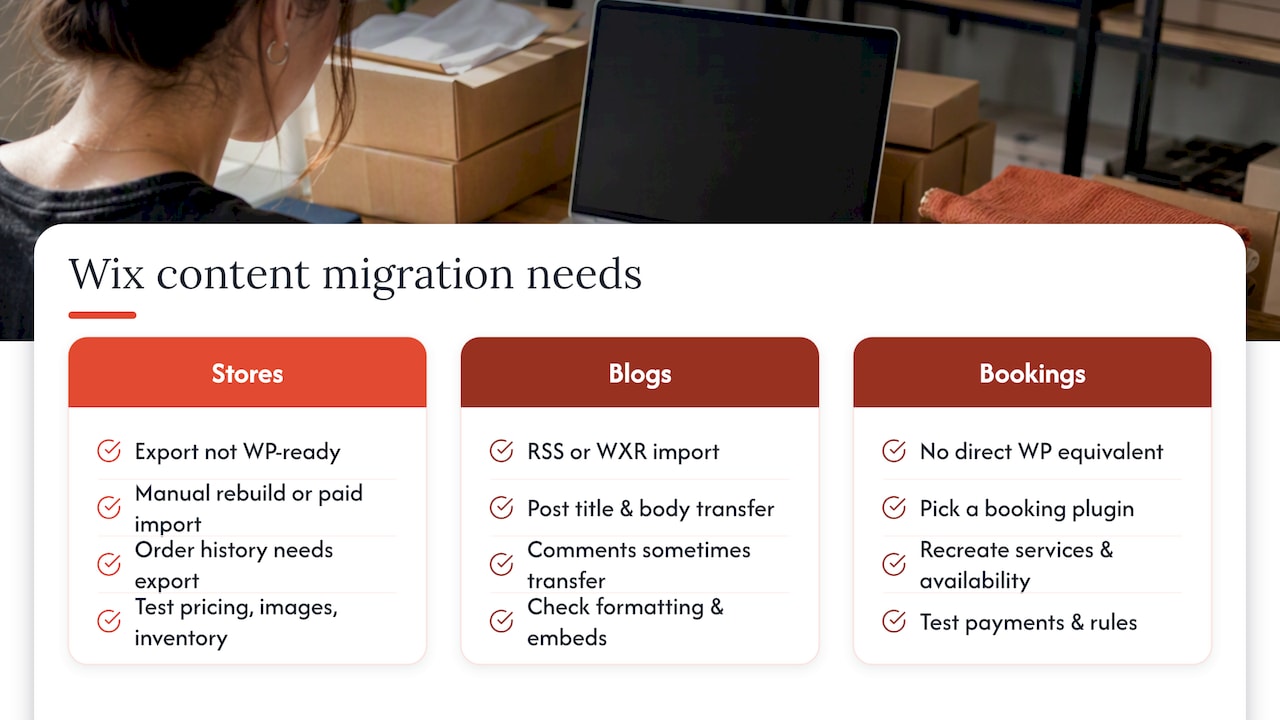
Wix Stores data, including products, variants, and order history, does not export in a format WordPress recognizes natively. Moving to WooCommerce or a similar WordPress store plugin usually means manually rebuilding product listings or using a paid import tool, and testing every product page before launch to confirm pricing, images, and inventory counts carried over correctly.
Wix Blogs are the easiest content type to move since RSS or WXR export can carry post titles, body text, and sometimes comments into WordPress’s importer. Even so, check each post for broken formatting, since Wix’s blog editor handles embeds and galleries differently than WordPress does.
Wix Bookings has no direct WordPress equivalent built in. You will need to choose a WordPress booking plugin and manually recreate your service list, availability rules, and any payment integration, since booking data generally does not transfer automatically between platforms.
Budget extra testing time for all three, since these are the areas where automated tools fall short and manual verification catches the most problems before customers do.
Migrating SEO metadata beyond redirects: titles, descriptions, and alt text
Redirects protect your URLs, but they do not carry over the metadata that helps your pages perform in search results. Meta titles, meta descriptions, and image alt text all need to be re-entered on the new WordPress site, since Wix’s export tools do not reliably carry this data through an automated migration.
Before you migrate, export or document the current meta title and description for every important page, so you can paste them into your WordPress SEO plugin fields rather than writing them from scratch under launch pressure. Do the same for image alt text, especially on product pages and blog post featured images, since alt text contributes to both accessibility and image search visibility.
Check your heading structure too. Wix sites sometimes apply heading tags inconsistently, and a clean migration is a good opportunity to confirm each page has one clear H1 and a logical order of H2s and H3s underneath it.
Managing user accounts and comments during migration
If your Wix site has member accounts, blog comments, or a community area, plan for this separately from your page and post content. WordPress’s WXR export can carry comments along with posts when that data is available, but member account credentials generally do not transfer automatically between platforms.
For blog comments, importing through the standard WordPress export and import process usually preserves the comment text, author name, and date, so this is one of the few areas where migration is relatively straightforward. For user accounts tied to logins, passwords, or purchase history, most site owners end up asking members to re-register on the new WordPress site, since passwords are hashed and cannot be transferred directly for security reasons.
If retaining account history matters to your business, such as for a store with repeat customers, flag this early as a potential professional migration task rather than something to handle manually at the last minute.
Common migration pitfalls and how to troubleshoot them
A few mistakes show up repeatedly in Wix-to-WordPress moves, and most are avoidable with a quick check before launch.
The most common issue is leaving a noindex tag active on the new site after launch, which can happen if a staging environment setting carries over accidentally. Check your WordPress reading settings and confirm search engine visibility is enabled before going live.
Redirect chains are another frequent problem: a URL that redirects to another redirect instead of the final destination. This slows crawling and can dilute the SEO value you are trying to preserve, so test each redirect to confirm it lands on the live page in one hop.
Server capacity issues can also trip up a launch, since a newly migrated site often sees a crawl spike as search engines reindex it. Confirm your hosting plan can handle that load before cutover rather than after your site slows down.
Finally, watch for orphaned media, images that uploaded correctly but are not linked from any page, since that usually signals a content inventory gap worth revisiting.
Hardening performance and security after launch
Once your WordPress site is live, a few steps protect both speed and security going forward. Install a caching solution to keep page load times competitive, since WordPress sites without caching can slow down under the same traffic a Wix site handled without issue.
Keep your WordPress core, theme, and plugins updated on a regular schedule, since outdated plugins are one of the most common entry points for security issues on self-hosted sites. A backup and migration plugin such as UpdraftPlus is a common choice for maintaining automated backups going forward, which also gives you a safety net if a future update breaks something.
Enable a web application firewall or security plugin to monitor login attempts and file changes, and confirm your SSL certificate renews automatically rather than lapsing unnoticed. These steps take an afternoon but prevent most of the problems that catch new WordPress site owners off guard in the months after launch.
A pragmatic rule of thumb for DIY versus hiring
DIY migration suits a small, static site with little riding on it. For ecommerce or any site where downtime costs you sales, hiring a specialist preserves your SEO and saves time you cannot easily get back.
— George
Ready to migrate without the guesswork of doing it alone
If reading through every step above made the scope of this project clearer, you are not wrong: migrating from Wix to WordPress well takes more than copying and pasting pages. We combine traditional web design expertise with AI-assisted development to move your site, rebuild your redirects, and rework your metadata as one coordinated project rather than a string of manual fixes.
An initial consultation covers your content inventory, domain situation, and whether your site needs ecommerce data migration, then we scope the build against our package options.
- Full-service migration and rebuild through our packages.
- Low-upfront-cost launch structure through our Website Launchpad program.
- Managed hosting with server-side redirect setup through our hosting plans.
| Migration need | Where it is handled |
|---|---|
| Small business site rebuild | Packages: Launch, Essential, Growth |
| Ecommerce store migration | Ecommerce: Brick & Mortar, E-Tail, Dropshipping |
| Low upfront cost launch | Website Launchpad: Managed Core, Growth Care, Commerce Care |
Reach out through our homepage to start the conversation about moving your site over.
FAQ
How does Wix compare to WordPress?
Wix is a closed, all-in-one website builder with hosting included, while WordPress is open-source software you install on hosting of your choice, which gives you far more control over plugins, themes, and server-level settings like redirects. WordPress generally offers more flexibility and scalability as a business grows, while Wix prioritizes simplicity for very small or temporary sites.
What is the best free plugin for migrating a WordPress site?
For moving content between two WordPress sites, the built-in Tools Export and Import feature creates a WXR file that carries posts, pages, comments, and categories at no cost. For ongoing backups after migration, a plugin like UpdraftPlus is a common free option for scheduling automated backups.
How do I migrate off Wix?
Start by inventorying your content and backing up your media, then choose a migration path: manual recreation for a small site, an export and import tool for blog content, or a professional migration for ecommerce. Once your WordPress site is built and tested, set up server-side 301 redirects and switch your domain’s DNS or complete a registrar transfer to go live.
Is Wix as good as WordPress for SEO?
WordPress generally gives you more SEO control because it supports server-side redirects, detailed metadata plugins, and deeper technical customization that Wix’s closed platform does not offer. Wix has improved its built-in SEO tools over the years, but the lack of server-level redirect control is a specific limitation worth weighing if long-term search visibility matters to your site.
How long does a Wix-to-WordPress migration take?
A small brochure site can often be migrated manually within a couple of weeks, while a blog-heavy or ecommerce site typically takes longer due to content cleanup and data mapping. Domain transfer timing, including the five-day Auth-Code delivery window, can also affect your overall schedule.
Sources
- About Auth-Code – ICANN
- Site moves and migrations | Google Search Central
- Tools export screen — WordPress documentation
- Google keep 301 redirects in place for a year — Search Engine Journal


2 comments